Introducing the Orgonaut AI and MCP Centre
A new home for using Orgonaut with ChatGPT, Claude, Claude Code, Codex and Astro: connection guides, practical prompts and tools grounded in your organisation.
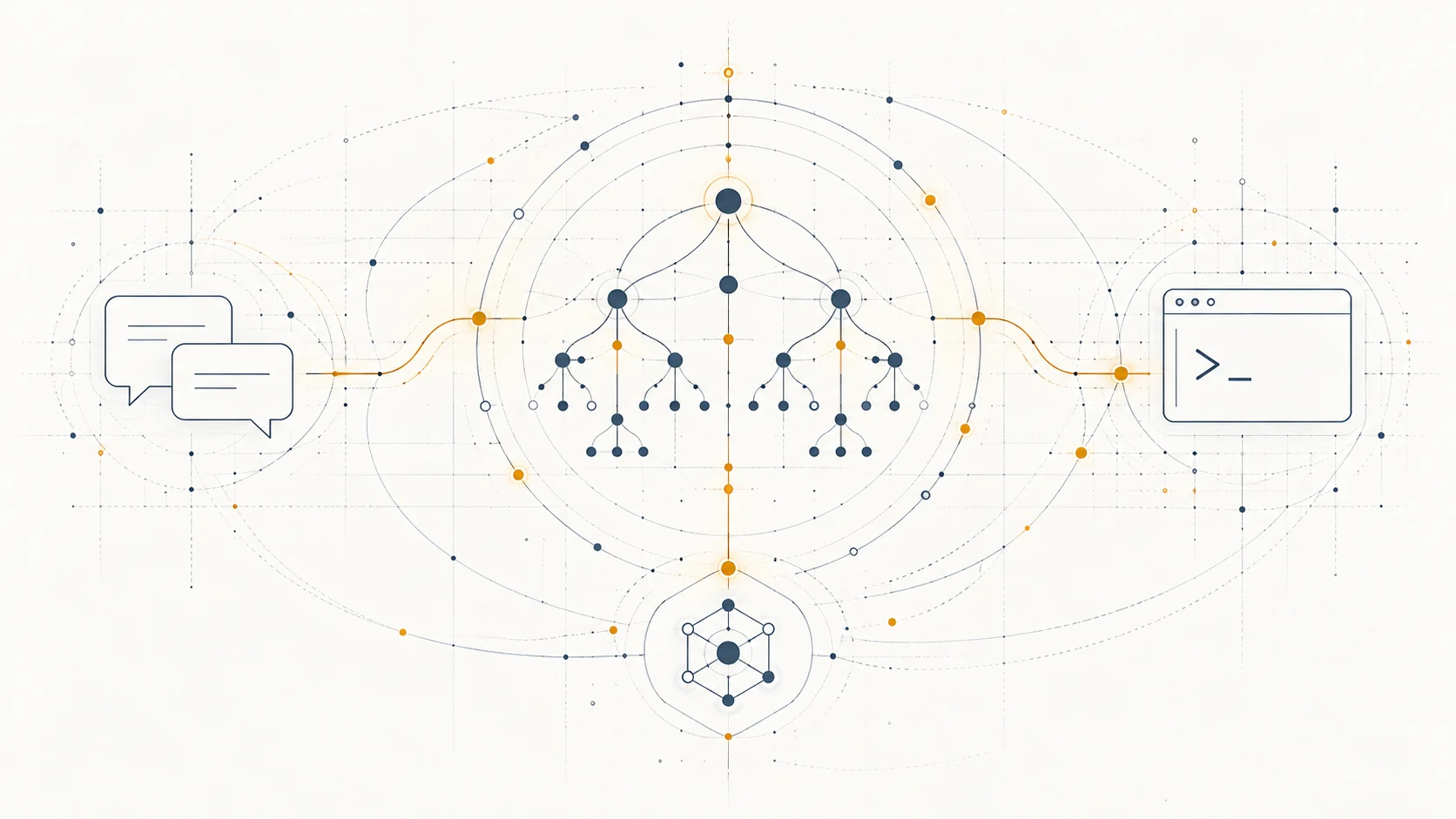
You probably already have an AI workspace you like. Perhaps you think through a question in ChatGPT, work with Claude, or use Claude Code or Codex from the terminal. Your organisation should be available where that work happens.
We’ve introduced the Orgonaut AI and MCP Centre to make that easier: two new pages that bring together our AI-native tools, explain how to connect them and show what you can ask once you do.
The AI centre gives you the broad picture. The MCP centre takes you through connecting your preferred assistant to Orgonaut, with setup instructions, sample prompts and a deeper look at the tools available.
These pages give Orgonaut’s existing AI capabilities a clearer home. Whether you’re opening Astro for the first time or connecting a coding agent, there’s now a practical place to start.
Bring your AI to the organisation
Useful organisational questions depend on context. Who is on the Platform team? How much of their time is allocated there? What changes in the proposed restructure? Which people and agents make up the future organisation?
Orgonaut’s remote MCP support lets a compatible assistant explore the structured model behind those questions. MCP—Model Context Protocol—is a standard way for AI tools to connect to external systems and discover what they can do.
For you, that means a conversation grounded in your organisation’s teams, actors, placements and scenarios. You can ask follow-up questions against the model without assembling a fresh export for every discussion.
Start with a question you actually have
The new centre includes prompts you can copy and adapt. For a first conversation, try:
Show our department structure and the teams in each department. Tell me which organisation and context you are using.
Then look at how people are allocated:
Show the Platform team’s roster, roles and allocations. Highlight people working across more than one team.
Or bring a proposed change into the conversation:
Compare the Q3 Restructure scenario with its source. Summarise the changes to teams, headcount, FTE and monthly cost where available.
Replace the example names with your own. The assistant’s answers depend on the data represented in your model and the permissions of your connection.
 ChatGPT Orgonaut
That same conversation can include agents and robots. Ask where they are placed and how their allocations contribute to a team. Humans and machines belong in the same planning picture.
Connect in the workspace you prefer
The MCP centre has setup paths for ChatGPT, Claude, Claude Code and Codex. Compatible remote MCP clients use this Orgonaut server URL:
https://app.orgonaut.co/mcp/orgonautAdd the connection in your client, sign in to Orgonaut, choose the organisation and select Read only or Full access. Then ask your first question.
Orgonaut MCP is included on every plan, including trials. Your AI provider may have its own plan requirements or workspace controls for custom connections.
The connection stays bound to the organisation you select during sign-in. Switching organisations in the web app does not switch your assistant’s connection; reconnect when you want to choose another organisation.
Explore a change, then decide
Connected AI can help prepare planning work as well as explain it. With Full access, you can ask for a supported change in a mutable scenario:
In Q3 Restructure, draft a proposal to move two people from Platform to Product. Show the affected records and impact before asking me to confirm.
Orgonaut stages the action as a proposal. Review the affected records and confirm explicitly when you’re ready to apply it in the scenario. A Read only connection can inspect and analyse, but cannot draft or confirm these actions.
Promotion to Live remains a decision in Orgonaut’s product workflow. The conversation helps you prepare the plan; the scenario gives you somewhere to inspect it before committing to organisational change.
One model, several ways to work
MCP is one part of the toolkit. The AI centre also brings together:
- Astro, the built-in assistant for exploring the model, getting product help and preparing scenario changes inside Orgonaut.
- The Orgonaut CLI, with structured output and a companion skill for Claude Code and Codex.
- The Orgonaut plugin, with guided temporary guest modelling and connected account tools.
- OrgSpec and the REST API, for portable models and your own integrations.
- Transformation Studio, where Enterprise and Agency users connect Work, Capabilities and governed AI Solutions to Transformation Cases, with read-only MCP review tools.
Choose the interface that fits the task. The organisation remains the shared model behind the work.
Find your starting point
Visit the AI centre to explore the options, or go straight to the MCP centre to connect your assistant. Both pages link to the end-user guides and developer references when you need the detail.
Bring one question about your organisation. Connect the tool you prefer. Start there.